Preparing for Internationalization (i18n)
Jahia is a multilingual CMS. This guide explains how to prepare your module for internationalization (i18n).
Content Definition
Even when your Jahia integration is not intended to be multilingual, it is still good practice to prepare it for i18n. The multilingual editing interface only appears when more than one language is configured on the website (⚙︎ > Sites > Choose a website > Languages), so these features remain hidden until actually needed.
To make a field translatable, simply add the i18n attribute to the field definition, and Jahia takes care of the rest. It works for all field types and inputs.
// Without `i18n`, the `body` field is shared across all languages
[example:contentType] > jnt:content
 - body (string, richtext)

// With `i18n`, the `body` field is translatable, each language has its own value
[example:contentType] > jnt:content
 - body (string, richtext) i18n
Child node syntax (e.g. + * (jmix:link)) does not support the i18n attribute: the content tree is shared across all languages. The workaround for this is per-language visibility conditions (Advanced Editing > Visibility > Languages).
We recommend adding the i18n attribute to:
- All visitor-facing free text fields (e.g. string, richtext, textarea)
- All weak references pointing to images that may include text overlays or locale-specific visuals
Under the hood, non-i18n fields are stored directly on the node, while i18n fields are stored as properties of jnt:translation child nodes named j:translation_<language>. You usually don't need to worry about this, properties will be handled automatically, but it can be helpful when debugging.
Views and Templates
After the editors have created content, you will want to display it in views and templates.
As mentioned before, for editor-written content, you don't need to do anything special: i18n properties are handled the exact same way as regular properties. Given the following Compact Node Definition (CND):
[example:title] > jnt:content
 - title (string) i18n
 - color (string)
The title field is translatable, while the color field is not. As a developer, you retrieve them in the same way in your views and templates:
interface Props {
  title: string; // Translatable string field
  color: string; // Non-translatable string field
}

jahiaComponent(
  {
    componentType: "view",
    nodeType: "example:title",
  },
  ({ title, color }: Props) => <h1 style={{ color }}>{title}</h1>,
  // ^ retrieve `title` and `color` the same way
);
Static Text
When creating views and templates, you may want to include static text such as <a href="...">Read more</a> links or labels like Written by {{author}}. For all user-facing translations, we use the i18next and react-i18next libraries. This guide covers the basics, but you can refer to the official documentation for more details.
Translations are stored in JSON files located in the settings/locales directory, named <language>.json. Each file contains a JSON object (potentially nested), with key-value pairs where the key is used in the code and the value is displayed to the user. For example:
// en.json
{
  "key1": "Read more",
  "key2": "Written by {{author}}"
}

// fr.json
{
  "key1": "Lire la suite",
  "key2": "Écrit par {{author}}"
}
The translation files are loaded automatically. The translation code is the same for both client and server code:
// Import the `useTranslation` hook
import { useTranslation } from "react-i18next";

function MyComponent() {
  // Get a contextualized translation function
  const { t } = useTranslation();

  return (
    <div>
      {/* Read more */}
      <a href="...">{t("key1")}</a>

      {/* Written by John Doe */}
      <p>{t("key2", { author: "John Doe" })}</p>
    </div>
  );
}
IDE Integration
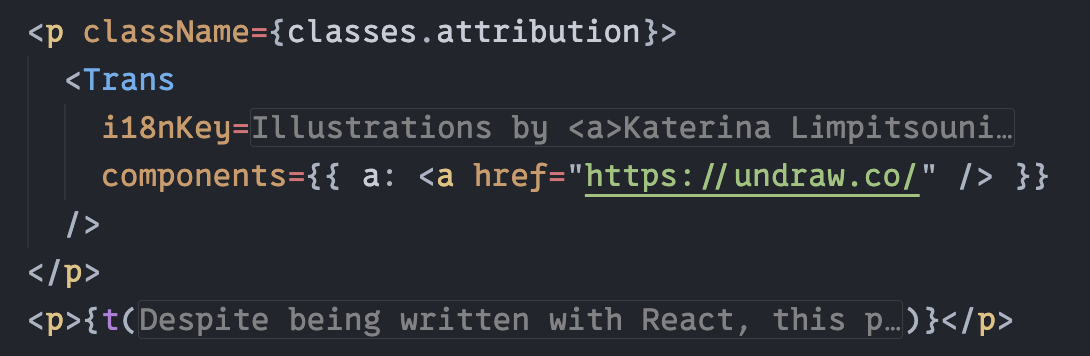
The npm init @jahia/module@latest command automatically configures the i18n ally extension for VS Code. When installed, it allows you to display and edit translations directly from the code, without having to open the JSON files:
It also provides a VS Code command to extract hardcoded strings into translation files:
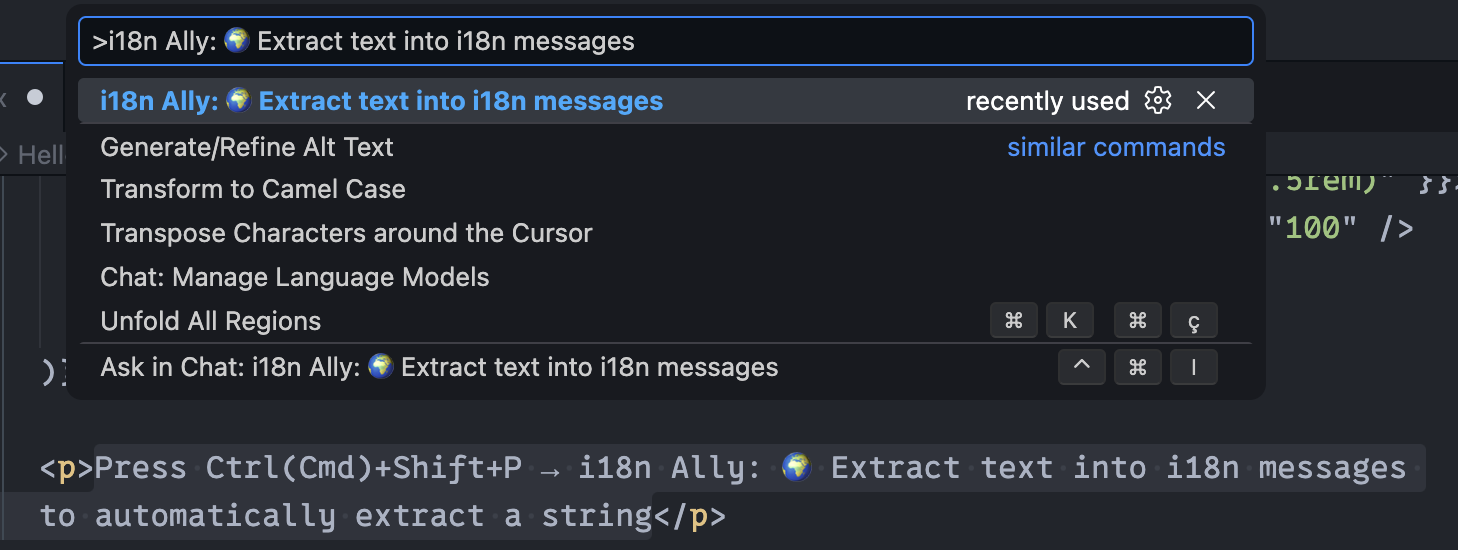
The Extract text into i18n messages command will automatically replace the selected string with a t("...") call.
It can also list missing or unused translations, and provide collaboration features.
Check out the i18n ally documentation for a complete list of features and configuration options.
A similar feature set is provided by i18next-cli. We haven't tested it yet, but it may prove useful for other IDEs or in CI environments.
Best Practices
Don't use concatenation
It can be tempting to write something like t("key") + " " + author to append dynamic data to a translation, but this will make translation impossible in languages with different word order.
For simple use cases, use interpolation: "key": "Written by {{author}}" and t("key", { author }).
For complex use cases involving HTML tags, use the Trans component:
import { Trans } from "react-i18next";

// "key": "Written by <a>{{author}}</a>"
<Trans
  i18nKey="key"
  values={{ author: "John Doe" }}
  components={{ a: <a href="..." /> }}
/>
Use random keys
This may sound counterintuitive, but using semantic keys like read-more or written-by-author is an anti-pattern. Here is a summary of the reasons cited in the article:
-
Discourage renaming keys, therefore preserving history
When the English translation evolves (e.g. "Read more" becomes "Continue reading"), developers are tempted to rename the key from
read-moretocontinue-reading, removing the translation history. -
Discourage copy-pasting the same translation in different contexts
For instance, the word "close" has two meanings: "shut" (verb) and "near" (adjective). Having a
"close": "Close"pair would make it impossible to translate this word in languages where the two meanings are different words. -
Avoid bikeshedding over key names or nesting
The i18n ally extension generates a random key when you use the extract command.
Building a Language Switcher
Building a production-ready language switcher requires combining four elements:
getSiteLocalesto retrieve the list of available languages on the current site- The
j:invalidLanguagesproperty to check if a translation is usable (e.g. not hidden by a visibility condition) node.hasI18N(Locale locale)to check if a node has a translation in a given languagebuildNodeUrlto construct URLs for nodes in different languages
// This example is meant for server-side rendering
import { buildNodeUrl, getSiteLocales } from "@jahia/javascript-modules-library";
import type { JCRNodeWrapper } from "org.jahia.services.content";

// `node` is the JCR node for which we want to build the language switcher
// (e.g. the current page node)
function languageSwitcher(node: JCRNodeWrapper) {
  // Retrieve all available languages on the current site
  const locales = getSiteLocales();

  // Get the list of languages for which the node is not valid
  const invalidLanguages = new Set(
    node.hasProperty("j:invalidLanguages")
      ? node
          .getProperty("j:invalidLanguages")
          .getValues()
          .map((value) => value.getString())
      : [],
  );

  const validLanguages = Object.entries(locales).filter(([code, locale]) => {
    // A language is valid if it's not in the invalidLanguages list and the node has a translation for it
    return !invalidLanguages.has(code) && node.hasI18N(locale);
  });

  for (const [code, locale] of validLanguages) {
    const url = buildNodeUrl(node, { language: code });
    // Display each language in its own language (e.g. "English", "français"...)
    console.log(`${locale.getDisplayLanguage(locale)} is available at: ${url}`);
  }
}
Edition Interfaces
Jahia provides translations for most of the edition interfaces. The only elements that must be translated by the module developer are the display name of node types, fields, and choice list options.
To support a multilingual edition interface, provide translations in <module>_<language>.properties (or <module>.properties in English) files in your module's settings/resources/ directory.
# Example for the `luxe:header` node type
# luxe-jahia-demo.properties
luxe_header=Page Header
luxe_header.title=Title
luxe_header.subtitle=Subtitle
luxe_header.subtitle.ui.tooltip=The subtitle is only shown with certain views.

# luxe-jahia-demo_fr.properties
luxe_header=En-tête de page
luxe_header.title=Titre
luxe_header.subtitle=Sous-titre
luxe_header.subtitle.ui.tooltip=Le sous-titre n'est affiché qu'avec certaines vues.
field.ui.tooltip supports basic HTML tags, such as <strong>. This also means you need to escape < and > as < and > if you want to display them as text.
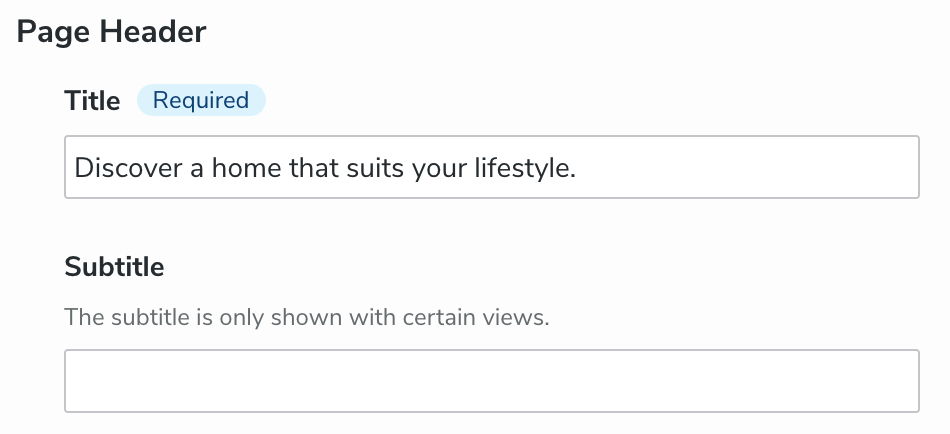
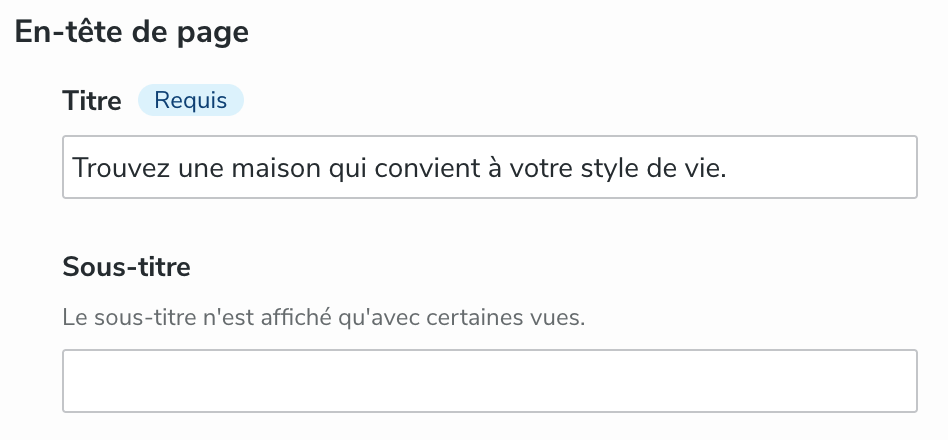
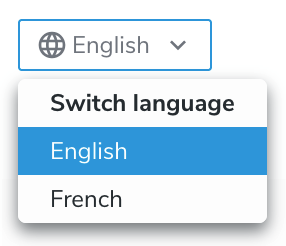
Despite what these screenshots may suggest, the edition interface language and the edited content language are independent:
-
Edited content language can be changed at the top of the edition interface:
-
Edition interface language is determined by the user's language preferences (👤 > Other information > Preferred Language).
To provide translations for choice list options, use the following format:
# The field is declared as
# - type (string, choicelist[resourceBundle]) < 'house', 'apartment', 'building'
luxe_estate.type=Type of Real Estate
luxe_estate.type.house=House
luxe_estate.type.apartment=Apartment
luxe_estate.type.building=Building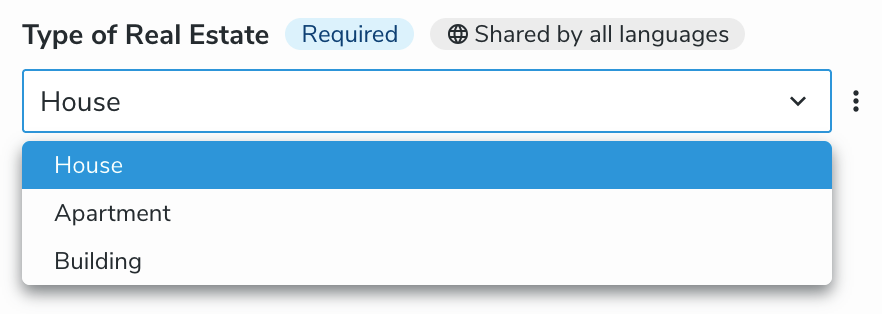
Make sure to include the [resourceBundle] suffix in the field declaration; without it, the translations will be ignored.
Reference
For further reference, you can check out the documentation of the libraries and tools we use for i18n:
We recommend consulting the i18next Best Practices guide.